What is rent abatement?
Rent Abatement is an agreement of payment terms between the lessor and lessee that provides free rent for a period of time.
If you wish to enter rent abatement in LeaseGuru, your first payment date should be the date you begin your first payment and the system will properly set a 0 payment amount for any months prior. Please see the instructions below on how to add free rent for a new lease and an existing lease in LeaseGuru.
How to Enter Free Rent
Follow these steps for a new lease:
1. Select "add lease" from your lease dashboard.
2. Enter your lease details.
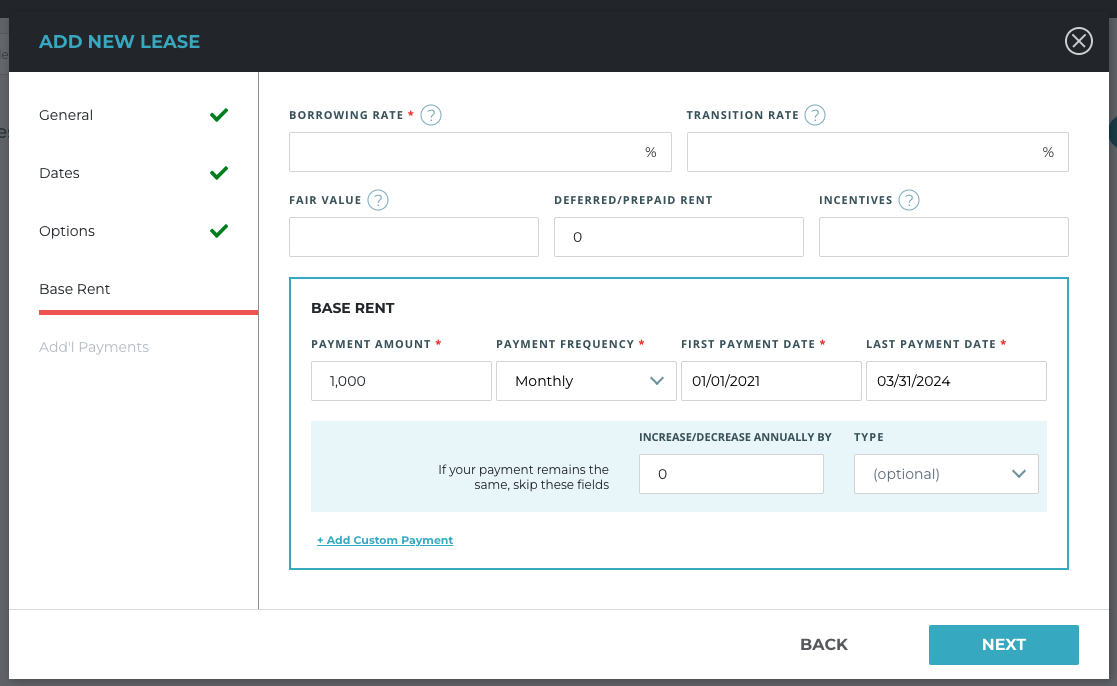
3. When you get to the "Base Rent" section, find the field called "First Payment Date". Change this date to the first date your payments actually start. For example, if your lease began on 10/01/2020, but you get free rent until 1/01/2021, then enter 1/01/2021 as your first payment date as shown below.
Follow these steps to amend an existing lease:
1. Select your lease in the lease dashboard.
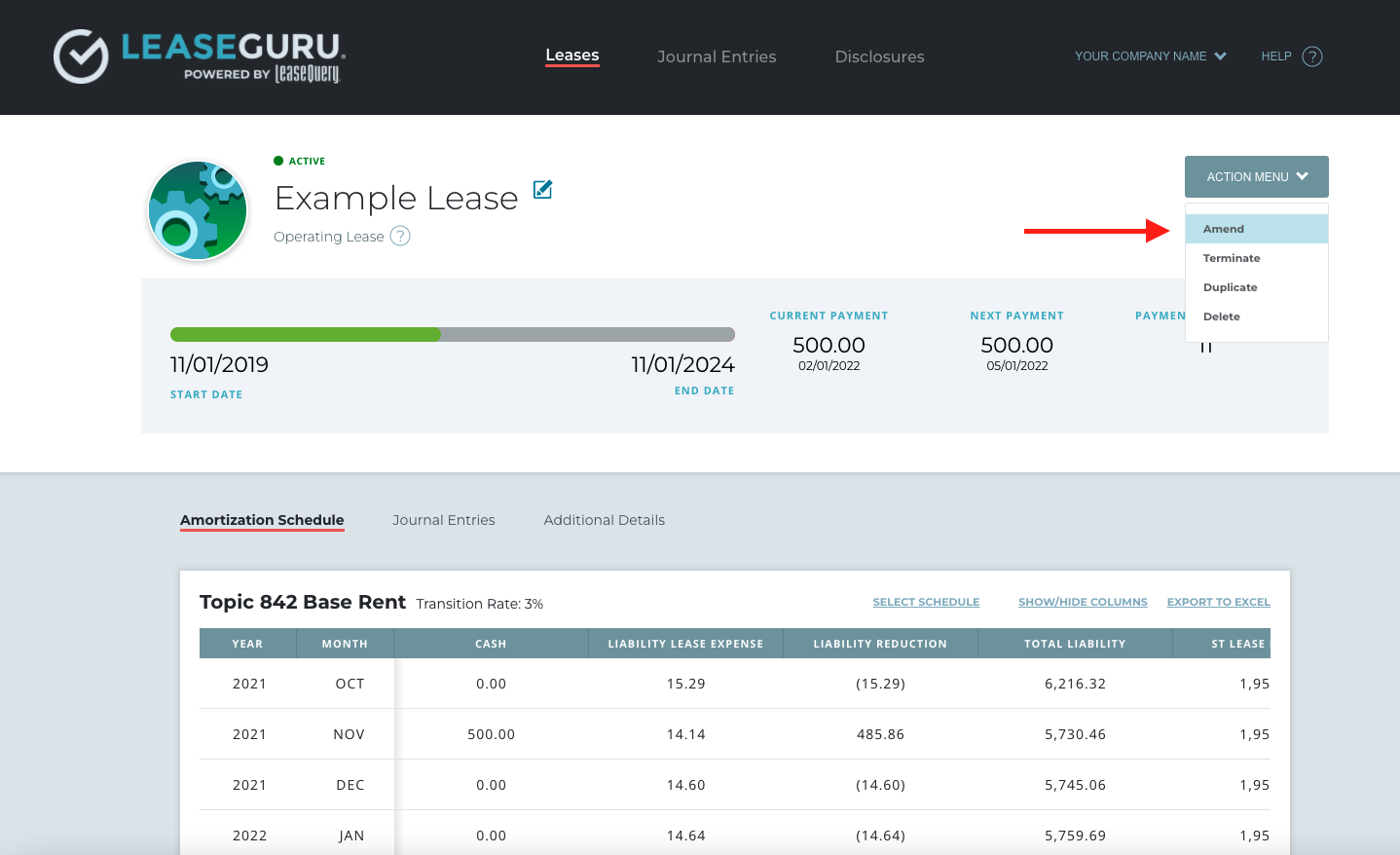
2. Select "Action Menu" in the top right corner and then select "Amend".
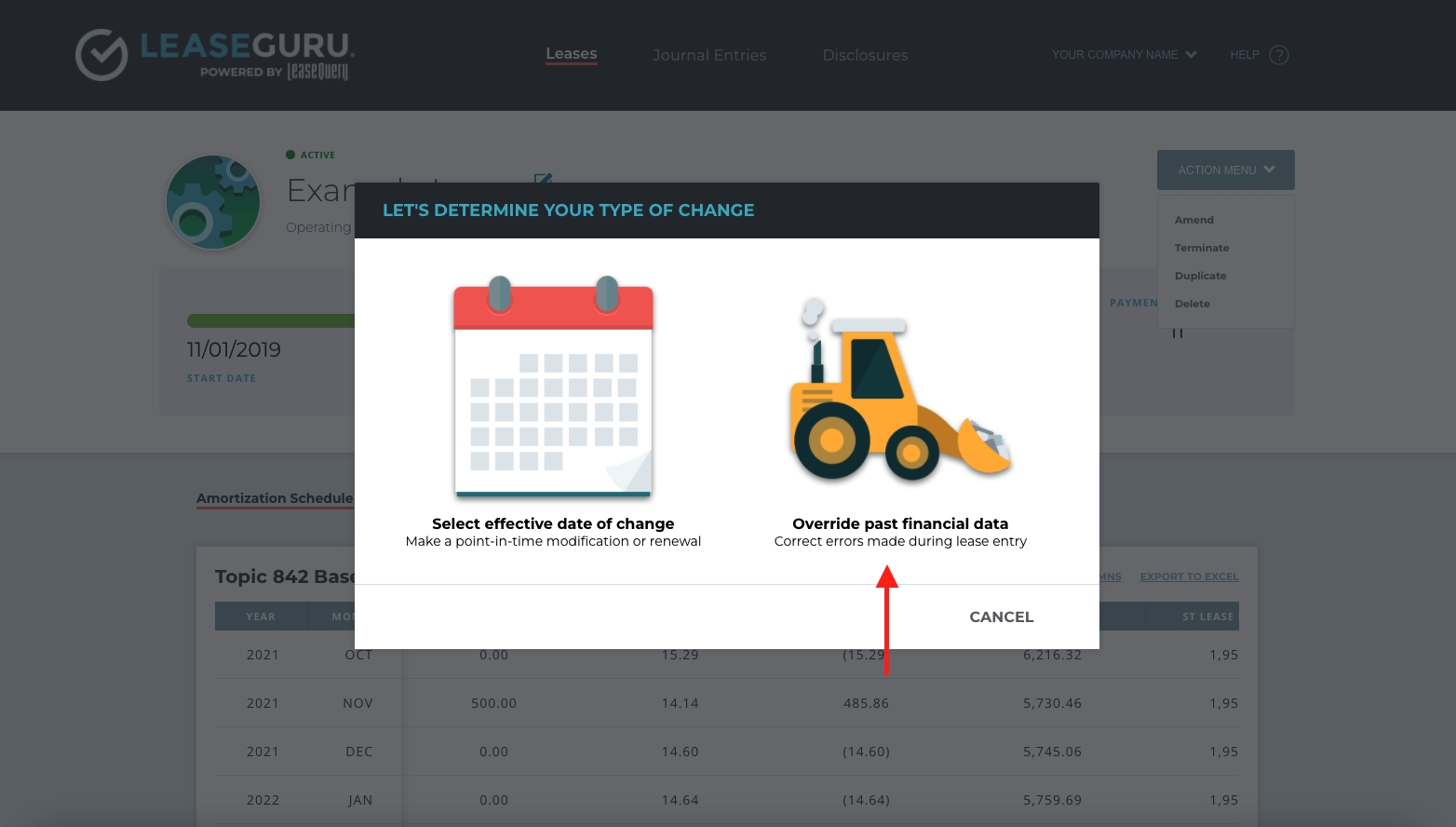
3. Next, select "Override past financial data" to amend your lease.
4. Click on the "Base Rent" section.
5. Under the field called "First Payment Date", change this date to the first date your payments will actually start.

How to Enter Free Rent During a Lease Term
To record a rent abatement period (free rent) in the middle of a lease term or at the end of a lease in LeaseGuru, you will need to use the Custom Payment feature. This applies if your payments change, but the terms by which they change are not constant. It can also be used if your lease payments are abated, or cease, for specific time periods of the lease term, for example annually on the anniversary of lease commencement.
1. To add a custom payment during lease entry, navigate to the "Base Rent" section.
2. Select the "Add Custom Payment" button to enter payment amounts by varying date ranges, and skip the months with no rent. Once the payment amounts are entered, you will need to select the frequency in which the payments occur. The following are the payment frequency options:
- Monthly
- Quarterly
- Annually
- One Time
Lastly, enter the "First Payment Date" and the "Last Payment Date" for each payment as applicable.
To do this for an existing lease, follow the steps above for amending an existing lease first.
Example:
As an example, let’s take a lease with a 36 month term of 01/01/20x1 -12/31/20x3 has base rent payments of $1,000/month and free rent every June. Using the Custom Payment feature:
- Enter a $1,000 monthly payment with a “First Payment Date” of 01/01/20x1 and a “Last Payment Date” of 05/01/20x1.
- Then enter a $1,000 monthly payment with a “First Payment Date” of 07/01/20x1 and a “Last Payment Date” of 05/01/20x2, to skip the 06/01/20x1 payment.
- Then enter a $1,000 monthly payment with a “First Payment Date” of 07/01/20x2 and a “Last Payment Date” of 05/01/20x3, to skip the 06/01/20x2 payment.
- Lastly, enter a $1,000 monthly payment with a “First Payment Date” of 07/01/20x3 and a “Last Payment Date” of 12/01/20x3, to skip the 06/01/20x3 payment.