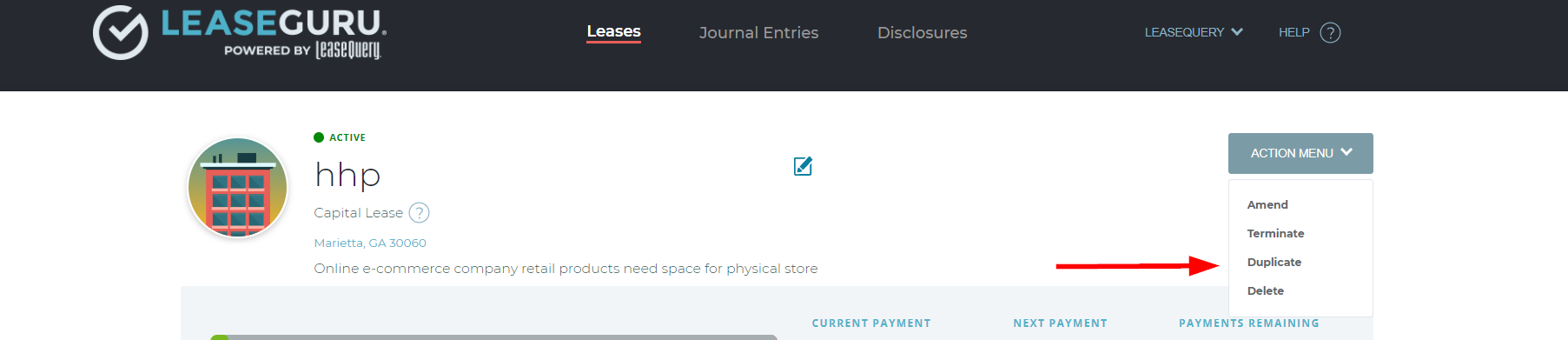
In LeaseGuru, you can amend, terminate, duplicate, or delete a lease. Let's explore the steps associated with each of these below.
Amend
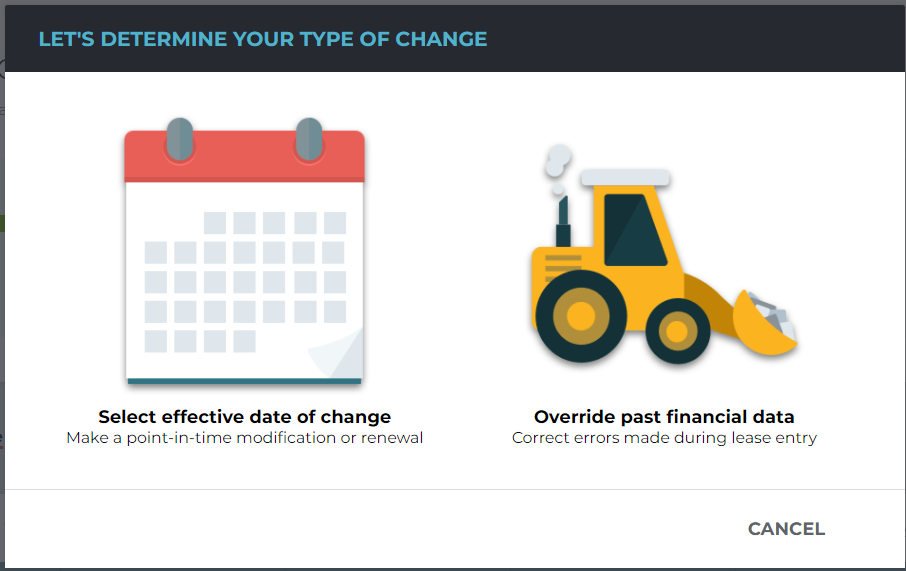
When amending an existing lease, you can select the date that the information in the original entry will change, OR, in the case of a mistake, you can override all past data. Both options will require the same steps as lease entry.
Lease Modification - Selecting an effective date of change will result in a lease modification. If you select an effective date of change, you may enter the date when there was a change in the scope of the lease that was not part of the original terms and conditions. This will lock all financial data prior to the effective date and recalculate financials from the effective date onward.
Lease Renewal - When entering a renewal into the software, it is important that you recognize the appropriate Effective Date in LeaseGuru. The guidance specifies that the date that you sign a renewal into effect is the date that you should be remeasuring your lease liability and ROU Asset balances. The Effective Date is not necessarily going to be the last day of the existing lease or the first day of the renewal term, but the date that you sign the renewal into effect.
To renew a lease, navigate to the lease you want to renew through the Leases tab and complete the following steps:
- Click the "Action Menu" button and confirm that you would like to "Amend" the lease.
- Enter the Effective Date of the renewal
- You will be taken to amend your lease as of the Effective Date
- Extend your Lease End Date to your new end date of the renewal
- The system will ask if you are renewing your lease. Select "Yes"
- Continue through the amending process to complete your renewal
Correcting an Error - If you override past financial data, you are selecting to make edits to the lease as if you are correcting an error that was made during lease entry. If financial information is altered, the entirety of the amortization schedule will be affected.
Terminate
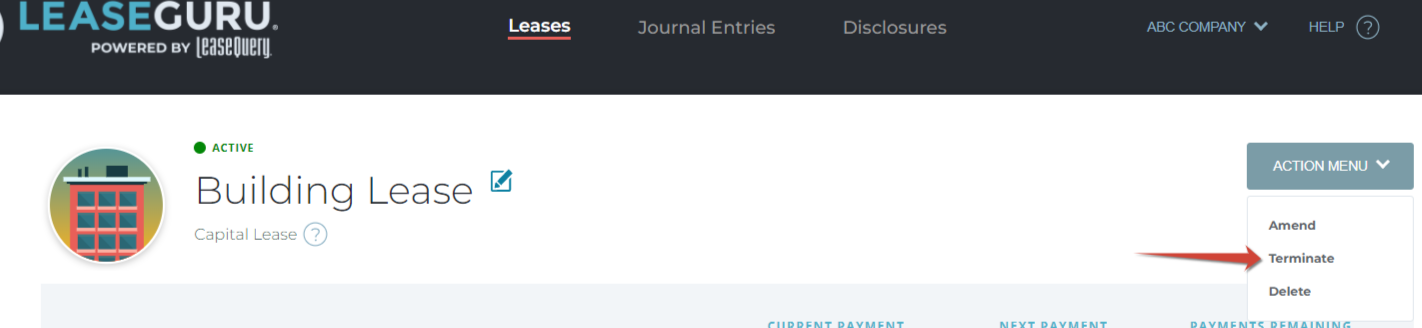
Terminating the lease is simply ending the lease early. The financials beyond the termination date will be removed and the end date will be automatically adjusted in the journal entry. Terminating a lease cannot be undone.
To terminate your lease, navigate to the lease from your dashboard that you wish to terminate. Select the Terminate option from the action menu dropdown and you will enter the date of termination.
Delete
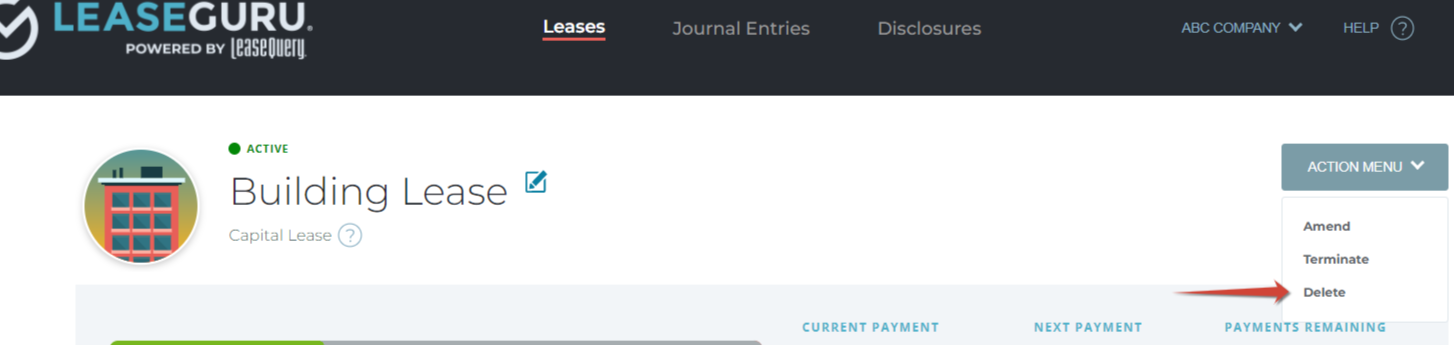
The delete option permanently removes your lease from your lease portfolio. Deleting a lease will also remove the deleted lease financials from any journal entries or disclosure reports that are run. Be careful, lease deletions cannot be undone.
Duplicate
If you would like to create a copy of the selected lease, you may do so by selecting Duplicate. This will allow you to go through the lease entry process with all information prepopulated with the details from the lease you wish to duplicate.
Note - You will not be able to duplicate a lease if you have reached the maximum number of leases for your account.
1. Select the lease in your account.
2. Once selected click the Action Menu
3. Select the duplicate option